AI Clothes Changer
Upload a photo of yourself, then pick a clothing reference or describe an outfit. We try to keep your face, pose and background as they are.
Verify your email and the credits cover one outfit swap here, or one brow preview.
One signup reward per browser, and some sign-ups need an extra check. You'll see your balance and the exact price before anything is generated.Loading your studio…
01Your photo
The starting pointStart with a photo of you
Keep your pose. Explore a different outfit.
Sign in to uploadJPEG / PNG / WebP · Up to 10 MBUse a clear, single-person photo with visible clothing. Your original is kept for every new look.
02Choose your outfit
Clothing references, not generated results. Click again to clear.
A new outfit. Your face, pose and surroundings preserved as closely as possible.
AI clothes changer before and after
From a sage green wrap dress to a cream linen pantsuit. This result was generated through the live LikeU Photo clothes changer from the original shown here.
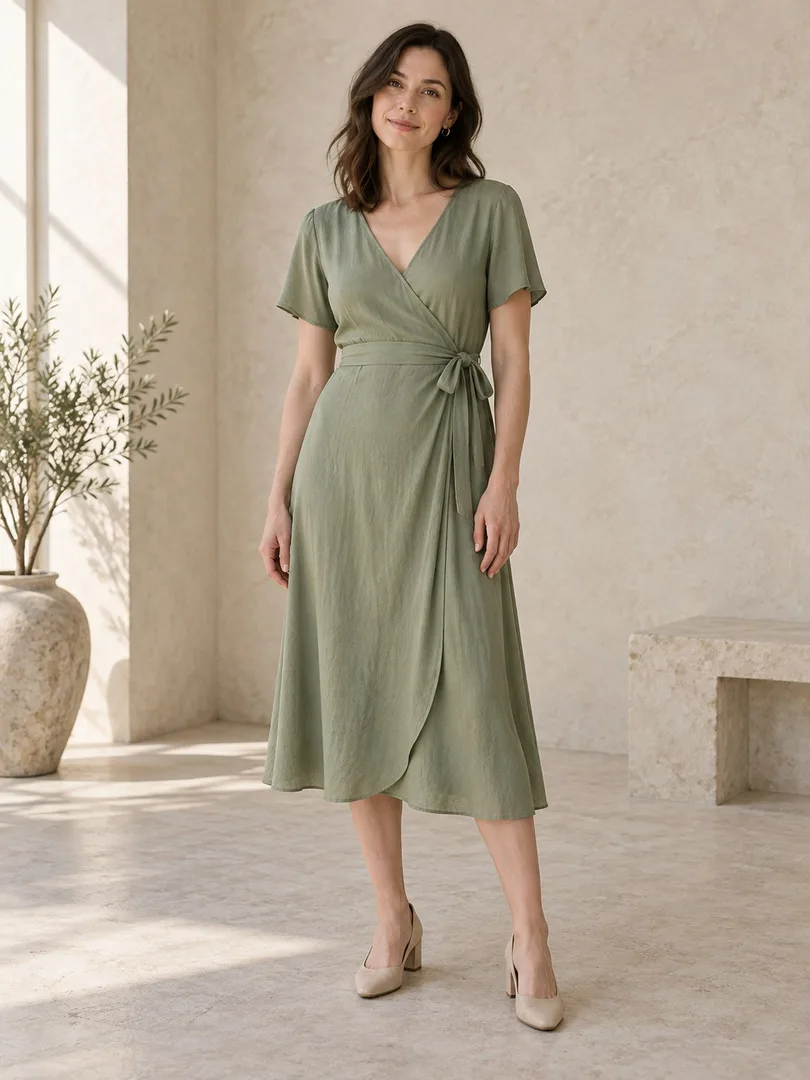
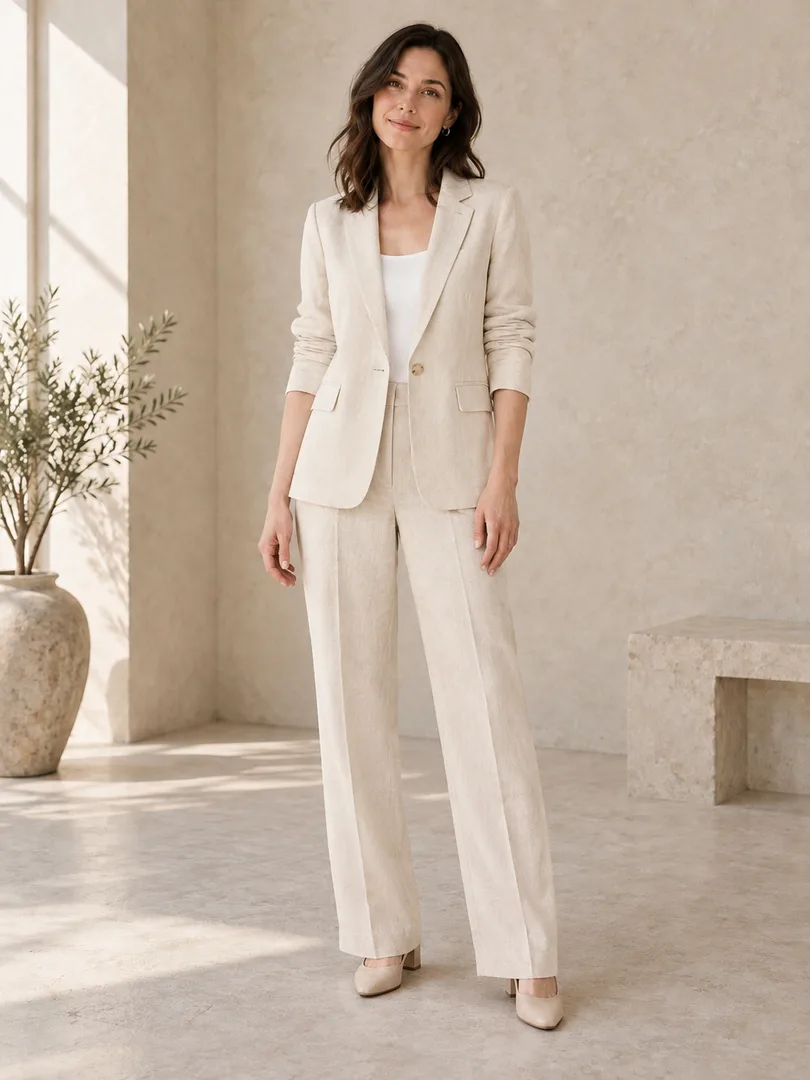
See the outfit description used
Change the sage dress to a cream linen pantsuit: a tailored single-breasted blazer over a plain white top and full-length straight trousers. Keep the same woman, face, hair, expression, standing pose, hands, shoes, background, lighting and framing.
Tested September 28, 2026; 20 historical-unit credits (v1) charged for this run, not the current quote. Images are resized and compressed for the web, with no additional retouching. One example does not guarantee the same outcome for every photo. Review the current quote before generating.
How to change clothes in a photo with AI
Start with a photo of one person in clear, even light. The area you want to change needs to be visible: a headshot cannot show a full dress, while a full-body photo gives the editor more room to interpret trousers, skirts and shoes. Avoid large bags, crossed arms or objects that hide important parts of the outfit. Keep the original file so you can compare small details after the edit.
Sign in, upload your photo, then choose a published clothing reference or describe an outfit in your own words. A reference gives the AI a visual direction for the garment; the person wearing it is not your new identity. Add a short description if you want a different color or sleeve length. Review the displayed credit quote, confirm that you have permission to use the photo, and start generation. Your task and result appear in History.
Outfit ideas you can try
For a work portrait, try a navy blazer over a plain cream top, or a softly structured jacket with matching trousers. Describe the level of formality you want instead of simply asking for “professional.” A neat collar, matte fabric and quiet color palette give a clearer direction than a long list of unrelated fashion terms. Check that any new neckline still looks natural around your neck and hair.
For everyday pictures, explore a linen shirt, a fine-knit sweater, a denim jacket or a simple cotton T-shirt. For an occasion, describe a midi dress, a jumpsuit or a coordinated suit. Women and men can use the same upload-and-description workflow; you do not need to pick a reference person who looks like you. Choose clothing that makes sense for the visible pose and the weather or setting in your original photo.
Color changes are another useful starting point. Try the same broad style in sage green, navy, cream or warm brown, then compare which works with the existing background. Change one main idea at a time if you want an easier comparison. A request that changes the garment, fabric, accessories and silhouette all at once is harder to evaluate.
Describe the outfit, not a whole new photograph
A useful prompt names the garment, color, material and cut. For example: “A sage green midi wrap dress with short sleeves and a modest neckline.” Or: “A cream linen shirt with an open collar, long sleeves rolled to the forearms, and a relaxed fit.” These are suggestions to type into the description field, not promises of a particular result. You can use up to 400 characters.
If you select a clothing reference, use the description to clarify what you want from it. You might keep the jacket shape but ask for dark blue instead of beige. Avoid asking the clothes changer to move you to a beach, change your expression or create a new camera angle. This tool is designed around an outfit edit on your original photograph. The portrait templates are a separate option when a different scene is the goal.
Before and after: what to check in your outfit photo
Open the completed task and switch between Original and New outfit. Begin with your face, hair and expression, then check the shoulders, hands, waist and the edges where the new fabric meets the background. Buttons, lapels, hems and repeated patterns deserve a closer look. A convincing thumbnail can still contain a misplaced seam or an extra fold when viewed at full size.
The instructions aim to retain identity, pose, background and framing, but AI edits can alter details. Download a result only after you are comfortable with it. For another attempt, start from the original photo rather than repeatedly editing an already changed image. The clothing thumbnails on this page are references, not before-and-after demonstrations or a guarantee of the output you will receive.
Privacy, permission and appropriate use
Upload a photo you own or have permission to edit, including permission from the person shown. Avoid confidential documents, bystanders and unnecessary personal information in the frame. Photos are uploaded to the service, and generation sends the relevant photo and outfit instructions to the configured image provider. This is not an edit performed only on your device. Saved uploads and results are available through your account workflow.
An AI clothes changer is useful for creative portraits and outfit ideas, but it does not measure your body or predict how a product will fit. It cannot verify fabric quality, exact sizing, stock availability or brand authenticity. If you share an edited image in a context where the appearance of clothing matters, make the edit clear. Do not use another person’s likeness to mislead people or imply their endorsement.
AI clothes changer FAQ
Can I try the AI clothes changer for free?
Eligible new accounts receive 50 signup credits that can be used for clothes changes. Create an account and complete verification, then check your balance and the quote shown before generating. The signup reward is limited to one claim per browser, with daily network limits. This is a limited credit trial, not unlimited free generation; saving drafts is free.
Can I use the AI clothes changer with no sign up?
You can browse the clothing references, read the guide and inspect the real before-and-after example without signing up. Uploading your own photo and generating a result require an account. LikeU Photo does not currently offer no-sign-up generation. Your account lets you return to saved photos, task history and downloads.
Can I change only the color or fabric?
You can request a focused edit, for example: keep the same shirt shape and change it to navy linen. Describe what should stay and what should change. The AI may still alter folds, seams or nearby details, so compare the result with your original rather than expecting an exact color replacement.
Where are my photos stored, and can I delete them?
Uploads and results are stored on the service so you can return to your account history; they are not automatically made public. Generating sends the required images to our image provider. In the portrait workspace, choose an uploaded photo and use its delete control to remove the upload and associated tasks and result files from the active service. This does not promise immediate removal from backups or from the provider's systems.
Can I use the AI clothes changer without a reference image?
Yes. Enter an outfit description with a garment type, color and cut. A published reference is optional. If no reference matches your idea, text is a useful way to explore a dress, suit, shirt or another fully clothed look.
Which photo formats are supported?
Upload a JPEG, PNG or static WebP, up to 10 MB and 24 megapixels. Use a clear photo of one person with the relevant clothing visible. Very small images, heavy blur and substantial obstruction leave less useful detail for the edit.
Will my face and background stay the same?
The editing instructions aim to preserve your identity, hairstyle, pose, framing and surroundings. This is an objective, not a guarantee of pixel-identical details. Compare your result with the original before using it, especially around the face, hands and garment edges.
Does this work for women and men?
Both can upload a photo and describe an outfit. The reference collection is only a starting point, not a restriction on who can use the tool. The useful inputs are the visible garment area and a clear description of the clothes you want.
When are credits charged?
The current quote appears next to the Generate button. Saving a draft is free. Starting generation reserves the quoted credits, and success settles the charge. A confirmed unsuccessful task releases the reservation; an uncertain result keeps it reserved until reviewed. Check History before submitting the same request again.
Can I return later and download my result?
Yes. Sign in with the same account and open History on this page. Completed tasks include the result, an original-photo comparison and a download control. A draft has no generated result yet. A task still running should be allowed to finish before you start a duplicate.
Is this a virtual fitting room for shopping?
It is a creative photo editor. A generated garment can suggest a style or color, but it is not evidence that a specific item will fit your body or look identical when purchased. Use a retailer’s measurements and product information for buying decisions.
Looking for a whole new scene?
Browse our portrait templates for a different kind of photo.